
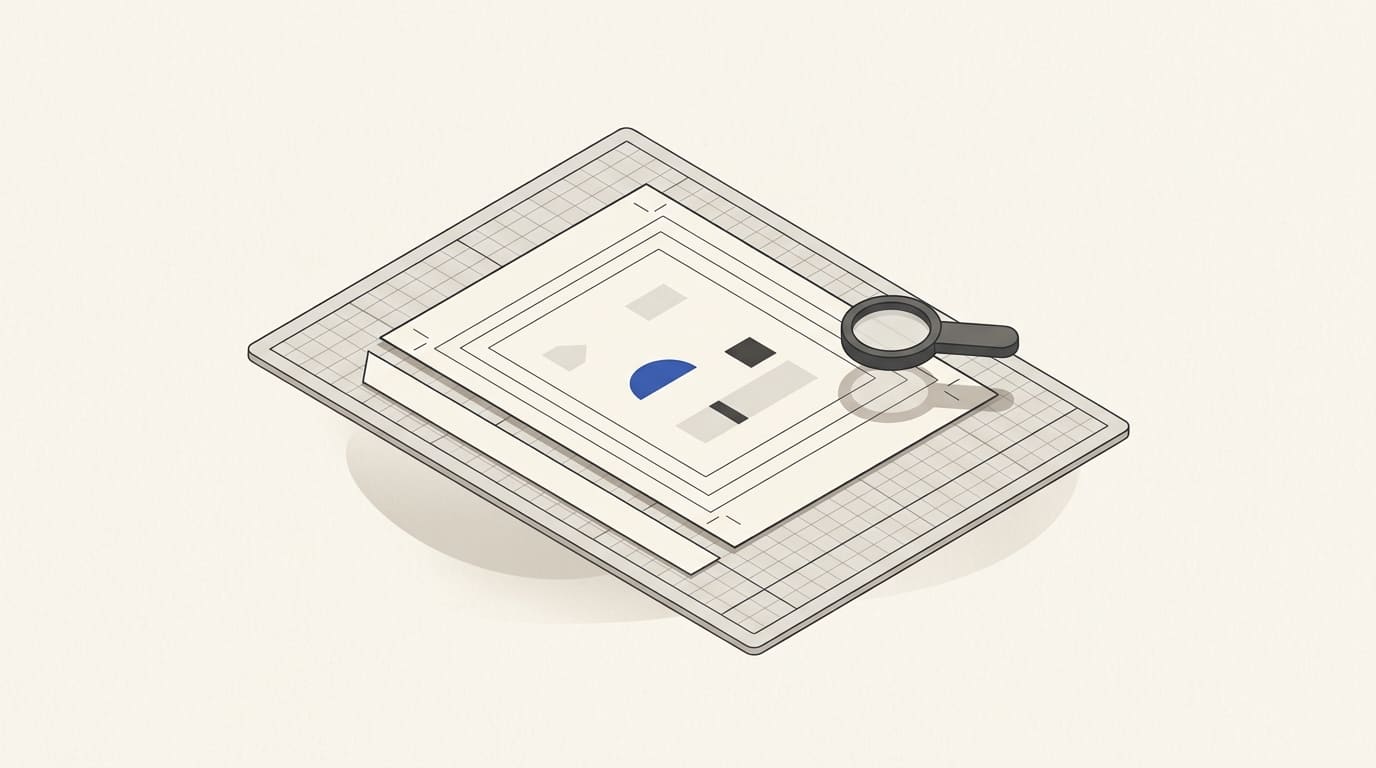
Artwork can look good on screen yet need changes before production. Reasons may include the wrong size, missing bleed, an unsuitable colour profile or details that the chosen printing method cannot reproduce.
Before approving the design, obtain the specific printer's requirements and give them to the designer. Agree separately on content, appearance and production readiness: these are different checks.
Specify the item and production method
State the finished size, page or side count, quantity, material, printing method and finishing. Folds, binding, die-cutting, embossing and spot varnish need corresponding specifications or manufacturer templates.
Clarify whether separate pages, spreads or a prepared print layout are required. Do not assemble the layout yourself if the printer performs that work under its own rules.
For packaging, obtain the current dieline first. Input preparation is described in the article on a packaging design brief.
Agree on bleed and safe areas
Bleed extends the background or image beyond the trim line. It helps avoid an unprinted edge when the cut varies. Important text and elements should instead sit inside the agreed safe area.
Ask the printer for bleed and inset dimensions. Adobe also recommends checking bleed with the print provider in its InDesign documentation. Do not apply one job's setting to every other material.
Hypothetical example. The finished item is 90 × 50 mm, with an agreed 3 mm bleed on each side. The area including bleed is 96 × 56 mm. This is not a new finished size; crop marks and other production elements may enlarge the file's page further.
Check that the background actually extends into the bleed rather than leaving an empty area around the artwork. Account separately for folds, glue areas and holes.
Define colour and image quality
Agree on the colour model, profile and use of separate printing inks. There is no universal rule that converting any file to CMYK is sufficient: preparation depends on the printer's process and the material.
If a brand colour matters, define the reference used to assess it and whether a proof is required. Colour on an uncalibrated screen is not an approved print reference. Some jobs also need checks of paper colour, transparency and overprinting behaviour.
Check images at their placed size. Enlarging a small raster image may reduce detail; changing a number in file settings does not itself add source detail. Agree on the required resolution for the specific material and viewing distance.
Adobe describes checking separations, overprinting and object properties in its Output Preview documentation. These tools help a specialist inspect the file, but screen viewing does not replace every production check.
Clarify PDF, font and finishing requirements
Obtain the required file format, PDF version or PDF/X variant and export settings. Adobe describes PDF/X selection when exporting PDFs for printing. Selecting a preset does not confirm that content and all job parameters are correct.
Agree on font embedding, permitted transparencies and preparation of finishing elements. Outlining text is not required in every workflow; if it is needed, retain the editable source separately.
Check the logo, thin lines, small text and codes. For a QR code, check scanning from a printed sample at the actual size. A good logo file does not confirm that the entire page is print-ready; the version set is covered in the article on logo formats.
Separate file checks from print-run approval
Preflight helps identify non-compliance with specified production conditions. An Acrobat report, for example, can contain information about colour spaces, images and fonts. Adobe's preflight report documentation.
It cannot automatically determine whether a price, address, translation or offer scope is correct. An owner on the business side needs to check those elements.
Before production, agree on what is approved: a PDF for content and geometry, a colour proof, a sample copy or another reference. A proof on different paper or without the selected finishing does not confirm all properties of the finished item.
After revisions, identify the final version. If the printer changes the file, agree whether another review is needed. “Print the latest one” is unreliable when both parties have several versions.
A checklist before artwork approval
- Finished size, pages, sides and construction are confirmed.
- Material, printing method and finishing are agreed.
- Bleed, safe areas and marks meet requirements.
- Profile, colours and shade assessment criteria are defined.
- Images, fonts, lines and codes are checked.
- PDF and finishing elements follow the specification.
- Content and language versions are accepted by the business.
- Proof type, final file and production approval are recorded.
Preparing advertising artwork and adapting it to print requirements can be discussed through our advertising design offer. Provide the format, content and printer's specification; printing, materials and trial production need separate consideration.