
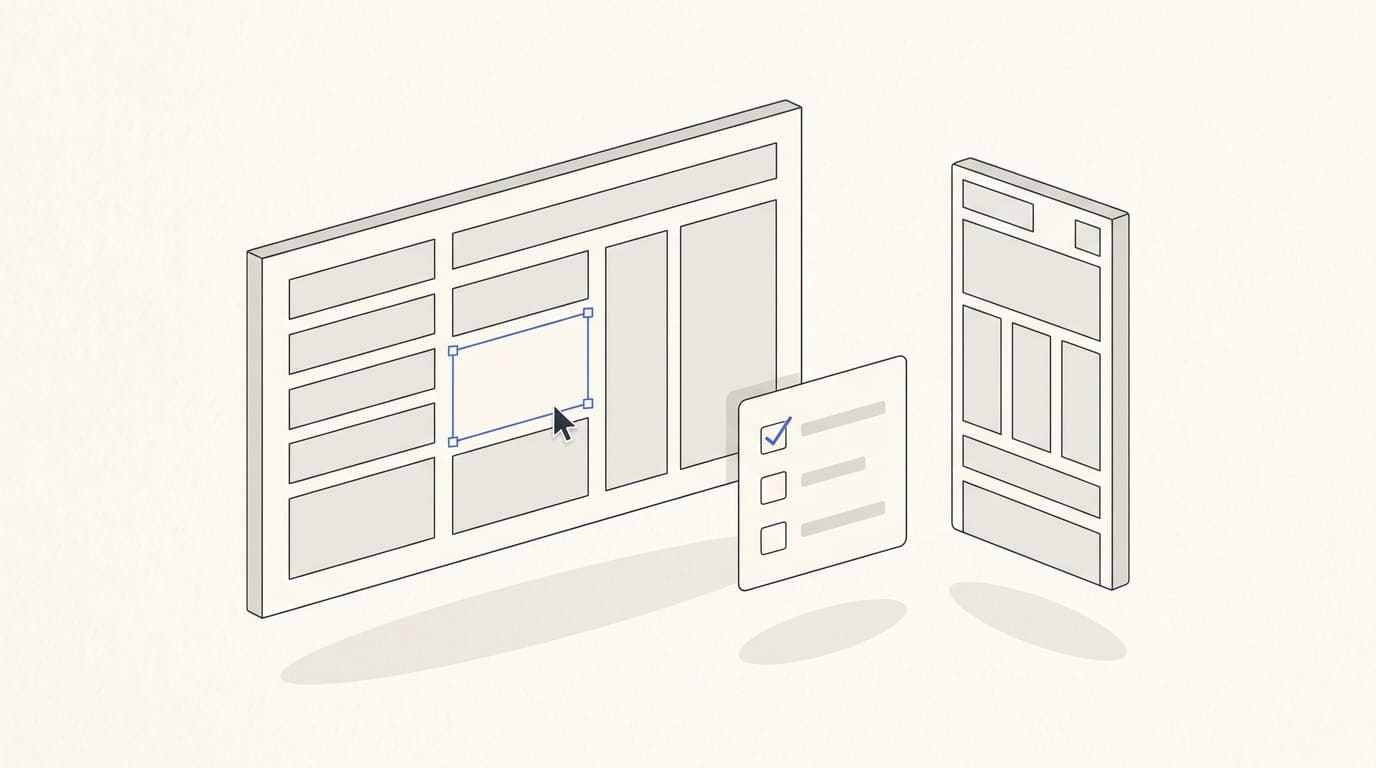
Before website development starts, agree on which pages will be built, how visitors will complete the intended action, and how the interface will behave on different screens. The more clearly these decisions are reflected in the design, the fewer questions the team will need to resolve during implementation.
To review the design, a client can work through the content, user journeys, mobile layouts, and materials prepared for the developer. Discuss technical constraints with the team before final approval.
Below is a review process and an example of how to hand over an approved design.
1. Check the Designs Against the Agreed Project Scope
Start with the pages and features listed in the brief. Check that Figma includes every agreed page type, such as the homepage, service listing, individual service page, articles, and contact page.
If several pages share a template, clarify what changes between them. Different services may require different text lengths, sections, pricing information, or inquiry forms.
Before the review, agree on what the team will deliver:
- desktop and mobile page designs;
- states for important elements, including menus, buttons, forms, and messages;
- an interactive prototype or a description of navigation and transitions;
- the source file, components, and assets needed for development.
Our website design in Figma service creates the structure and visual design for subsequent development. Include the number of pages, required states, prototyping, and revision process in the agreed scope of work.
2. Follow the Visitor Journey from Arrival to Inquiry
Choose the main journeys: learning about a service, comparing offers, viewing examples, finding contact details, or submitting an inquiry.
For each journey, check:
- whether the page clearly explains the offer;
- whether visitors can find the information needed to make a decision;
- whether the relevant action is easy to notice and the button label is clear;
- whether it is clear where a link leads and what happens next.
Follow these routes in the interactive prototype. Figma lets you connect screens and demonstrate user journeys, including transitions and interactions. Figma’s guide to prototyping.
Ask the team to identify which interactions are demonstrated and which are documented separately. If a button does not respond in the prototype, clarify whether its behavior has been overlooked or simply has not been modeled yet.
A prototype helps you agree on interface logic. Delivery of inquiries to email or a CRM, payments, and other integrations are checked during website implementation.
3. Review the Actual Content and Assets
The design needs to accommodate the content the website will use. Wherever possible, review it with final headings, service descriptions, prices, photographs, and contact details.
If the materials are not ready, mark the placeholders and decide who will replace them and when. Assess the impact of the replacement: a longer heading may change the height of the opening section, while a different image may need a different crop.
Ask the team to show several challenging examples:
- a long service or product name;
- a card containing a large amount of text;
- a price with an additional explanation;
- a heading and button in another language if the website is multilingual.
Also check text readability, identifiable links, heading order, and sufficient spacing. Error messages should be understandable without relying on color alone. WCAG calls for additional ways to communicate this information. W3C’s explanation of the use of color.
4. Agree on Mobile Layouts and Behavior at Different Widths
Open the mobile designs and prototype on a phone. Check whether it is easy to read the offer, open the menu, reach the form, and return to the content.
Pay particular attention to long pages, tables, cards, fixed elements, and pop-ups. Clarify which sections rearrange, which are shortened, and how important information remains accessible.
Discuss behavior between the supplied layout widths separately. For example, what happens when the screen is narrower than the desktop design but wider than the mobile design: does the number of columns change, does the heading wrap, and when does the compact menu appear?
You do not need a separate design for every width. The developer needs clear layout rules and an explanation of any exceptions that require an additional design.
Viewing a prototype on a phone helps you assess the design presentation. Actual responsiveness in browsers and behavior with the on-screen keyboard are checked on the developed website.
5. Check Menu, Form, and Button States
A single screen with an empty form does not describe the entire inquiry process. Agree on what visitors will see when entering data, submitting the form, and encountering an error.
Include only the states required by the specific interface. The purpose and behavior of each important element should be clear.
For example, after a submission error, it is useful to preserve the entered data and explain the next step. Agree on this scenario and pass it to the developer so they can assess how to implement it.
If the website includes search, filters, a shopping cart, or a user account, add their states to the review. The list depends on the project’s features.
6. Discuss Components and Implementation with the Developer
Repeated buttons, cards, fields, and navigation elements should use agreed dimensions, styling, and states. Clarify which elements are built as components and how their variants are identified.
Check consistency in colors, fonts, and spacing. If similar elements look different, the team needs to understand whether the difference serves a purpose or needs correcting.
Before final approval, ask the developer to assess complex parts, including animation, unusual menus, filters, fixed sections, and integrations. Agree on how they will work on the chosen platform and what affects implementation cost or timing.
This is particularly useful when the design will be handed over to a different team. If the project includes both design and multi-page website development, arrange developer involvement during the design review.
7. Collect Feedback and Record Decisions
Ask everyone reviewing the design to collect feedback in one place. Figma lets you attach comments to specific areas of a design, discuss them, and resolve them once a decision has been made. Figma’s guide to comments.
Each comment should identify the page, the problem, and the expected outcome. For example: “On the mobile service page, the price is separated from its explanation. Place them together so visitors understand what the amount includes.”
Prioritize the feedback:
- Must be fixed before approval: a required page is missing, an important journey is undefined, or the content cannot fit.
- Agreed revisions: text adjustments, element alignment, or styling changes within the brief.
- Additional requests: new pages or features that need a separate estimate.
Appoint one person to confirm final decisions on the client’s behalf. After revisions, check the changed areas and related journeys again.
8. Hand Over the Approved Designs for Development
Before approval, work through this short checklist:
A standard Figma file link shows the file’s current state. Place approved designs on a dedicated page in the current file and record their version. Version history helps preserve the approval checkpoint; for development, verify that the team can work with the elements and export the required assets. Figma’s documentation on version history.
Decide where subsequent changes will appear and how the team will know they have been approved. This helps prevent people from working from different design revisions.
Illustrative Design Handoff Example
A message to the developer could include:
- File and version: a Figma link, the “Approved for Development” page, version 1.0.
- Scope: homepage, service listing, service page, and contact page; desktop and mobile layouts.
- Journey: navigation from the service page to the inquiry form; successful submission and error states are described in the design.
- Assets: copy is approved, graphics are prepared, and fonts and their integration method are agreed.
- Open questions: additional animation requires an estimate and separate approval.
- Change process: new revisions are recorded in a list and passed to the developer after approval by the designated client representative.
After implementation, review the website separately: compare it with the approved design and check responsiveness, forms, navigation, and connected services.
A thoroughly reviewed design gives the team clear decisions to implement. The client has an agreed scope, a recorded version, and criteria for reviewing the finished website.